Buttons

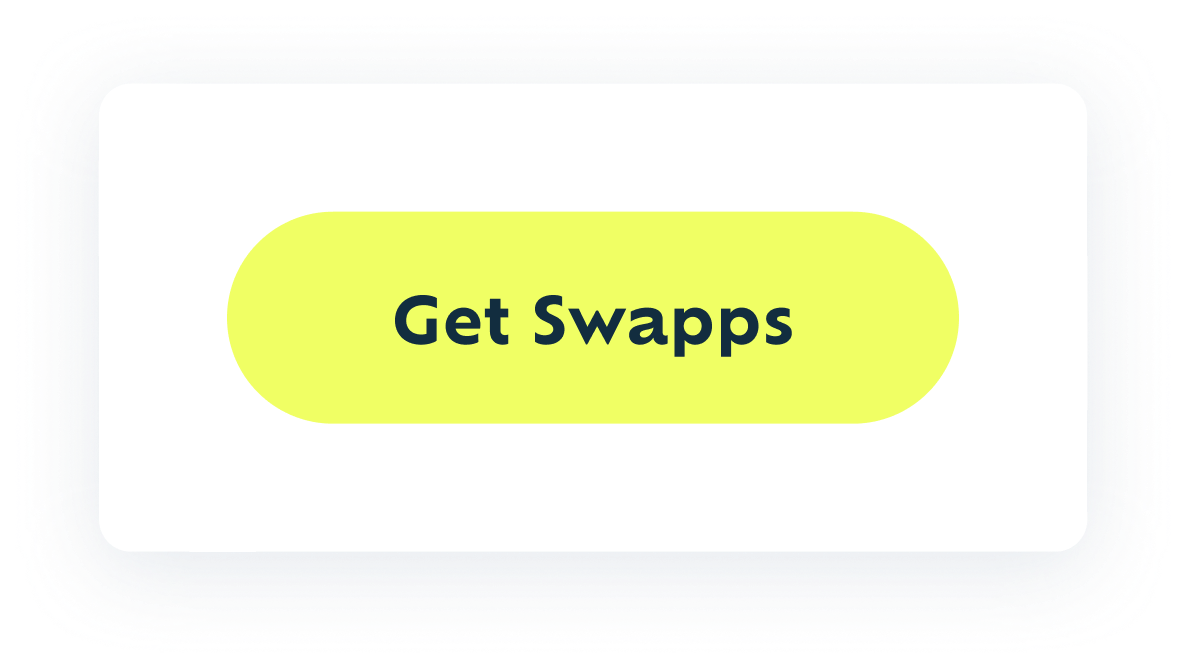
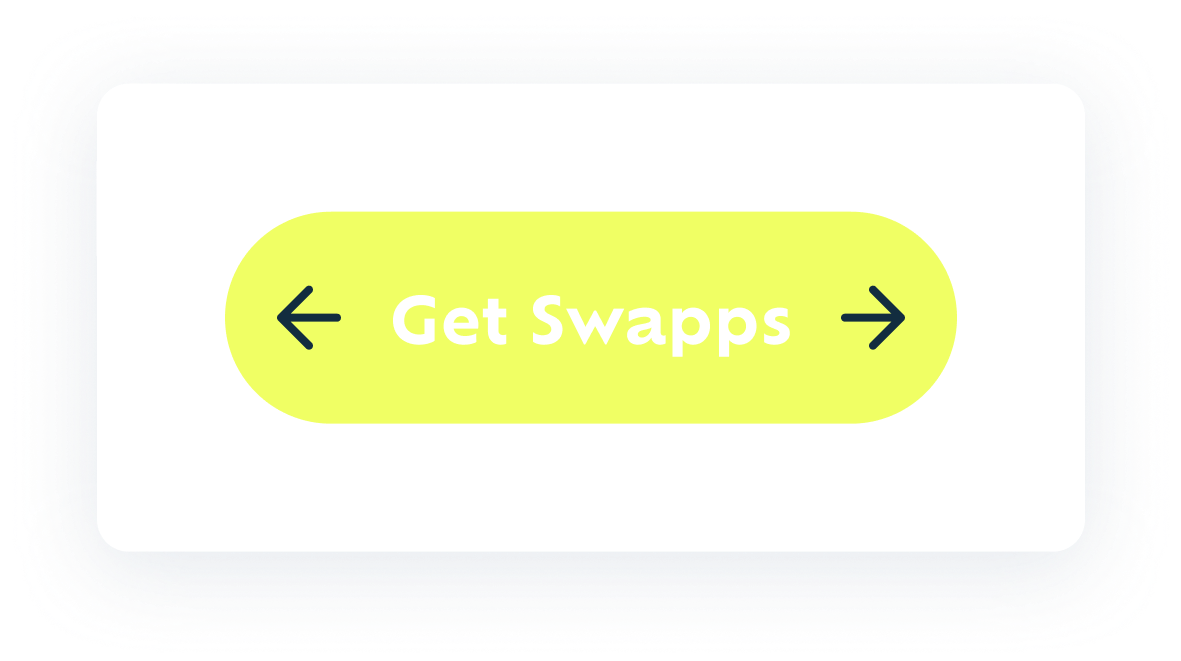
Buttons are interactive elements that allow users to perform actions or navigate through an interface. They are essential for guiding user interactions and enhancing the overall user experience.

Buttons

Best Practices

Green Arrow Right

Do´s:

  • Provide clear labels: Use concise and action-oriented text like "Submit," "Cancel," or "Delete."
  • Use consistent spacing: Maintain consistent margins and paddings around buttons to ensure a clean layout.
  • Maintain accessibility: Ensure buttons have sufficient contrast ratios and include accessible labels for screen readers.
Good Best Practices Example
Red Cross X

Dont´s:

  • Use vague labels: Avoid labels that are not clear or descriptive, like "Click here" or "Go."
  • Neglect state changes: Ensure that buttons visually respond to user interactions, such as hover and active states.
  • Ignore context: Avoid placing buttons in locations that may confuse the user or interrupt their workflow.
Bad Best Practices Example

Variants

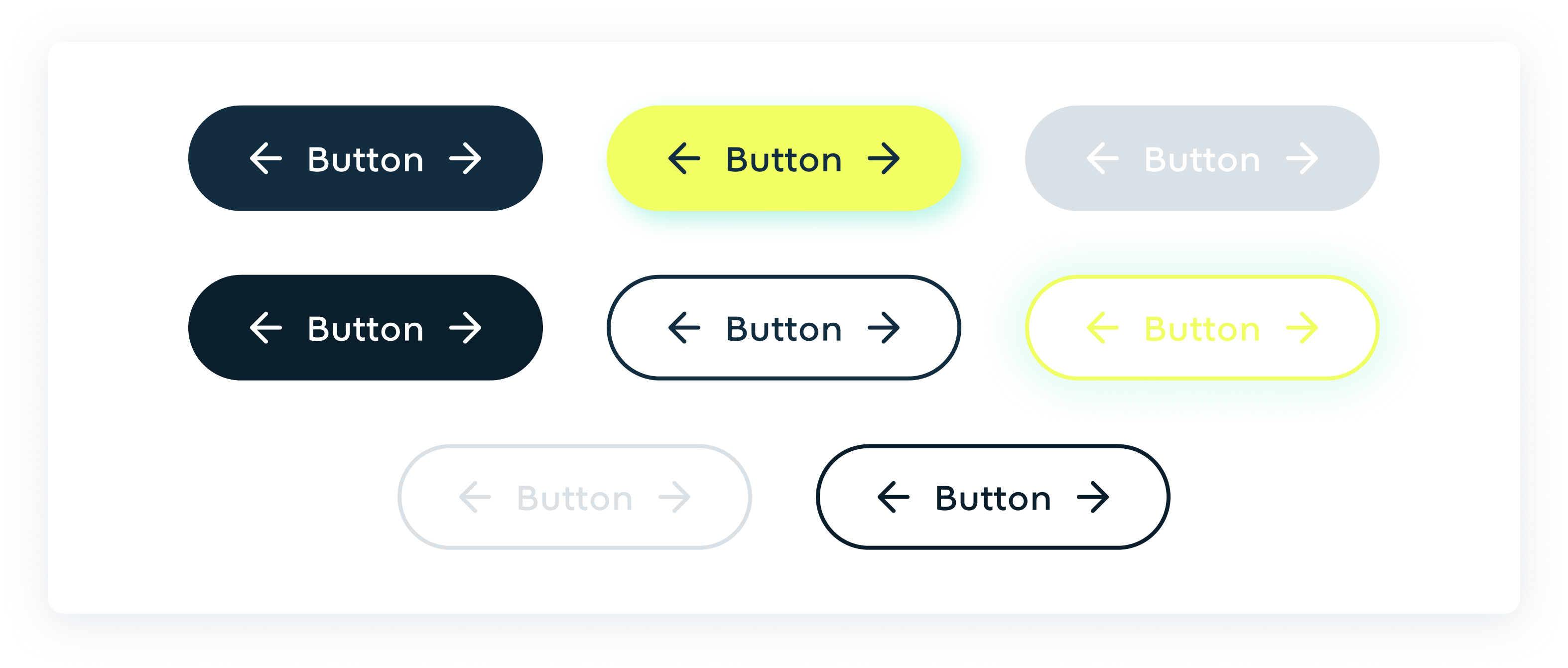
Button Variants
VariantsUsage
DefaultThe default state of a button represents its appearance when it is not being interacted with. This is the standard look of the button as it appears on the page.
HoveredThe hovered state of a button indicates that the user's pointer is hovering over it. This state provides visual feedback that the button is interactive.
DisableThe disabled state indicates that the button is not currently interactive. This is typically used when the button action is not available.
ClickedThe clicked or active state represents the button when it is being pressed or activated. This provides feedback that the button has been clicked.